Backup and Recovery
Back up the controller database and its encryption key so you can restore pfSense Actions without recreating tokens or settings.
What to Back Up
| Item | Why it matters |
|---|---|
| The data volume | It holds the database with every token, setting, notification destination, and activity record, and the generated key in keys/installation.key that opens the saved pfSense credential, the authenticator app, and each destination's secret fields. |
The backup holds the password hash, each token hash, and the encrypted credentials and notification secrets, and with the generated key it can decrypt them. Raw tokens and raw recovery codes aren't in it.
It's recommended to store the backup encrypted.
Back Up the Data Volume
-
Stop the service so the database files are consistent.
docker compose stop app -
Copy the volume's contents into an archive, using any image that has
tar.docker run --rm \ -v pfsense-actions_pfsense_actions_data:/data:ro \ -v "$PWD":/backup \ debian:trixie-slim \ tar -czf /backup/pfsense-actions-data.tgz -C /data . -
Start the service again.
docker compose start app
- Compose names the volume
pfsense-actions_pfsense_actions_dataafter the project name incompose.yml, anddocker volume lslists it. - The archive includes the
-waland-shmfiles next topfsense-actions.sqlite3, which belong with it, and thekeysfolder.
Restore
Replace the volume's contents with the archive, so the database and keys/installation.key come back from the same backup.
danger
The first command below deletes the current data volume before the backup replaces it.
docker compose down --volumes
docker compose up --no-start
docker run --rm \
  -v pfsense-actions_pfsense_actions_data:/data \
  -v "$PWD":/backup:ro \
  debian:trixie-slim \
  tar -xzpf /backup/pfsense-actions-data.tgz -C /data
docker compose start app
Restored files keep their owner, which needs to match the PUID and PGID the service runs as.
Lost Administrator Password
There's no password reset. To get back in, restore a backup from a time you knew the password, or reinitialize as described below.
A passkey still signs you in, but changing the password asks for the current one.
Lost Authenticator
- With a recovery code, sign in with it in place of the authenticator code. Then open Password and sign-in, turn off the authenticator app, and set it up again on your new device.
- With a passkey, sign in with it and do the same.
- Without either, delete
keys/installation.keywith the command in Encryption Key Doesn't Match and restart pfSense Actions. The authenticator app is then turned off so the password signs you in, but the saved pfSense credential and the notification secrets are removed too, as described in Lost Encryption Key. - Restoring a backup made before the authenticator app was turned on also works.
Lost Encryption Key
When keys/installation.key is missing, pfSense Actions makes a new encryption key and starts. Secrets locked with the old key can't be opened anymore, so it removes them and keeps everything else.
- Removed — The saved pfSense password or private key, the authenticator app, which is turned off with its recovery codes, and every notification destination's secret fields.
- Kept — The administrator account and password, passkeys, browser sessions, tokens, settings, the activity log, the connection's address, port, username, and sign-in method, and each destination's name, events, and plain fields.
Log and Notice
On that start, the log names what was removed.
WARN No encryption key was found at /data/keys/installation.key, so pfSense Actions made a new one. These saved secrets were locked with the old key and were removed: the pfSense password, the authenticator app for <username>. Enter them again in the console.
- The list says
the pfSense private keyinstead when the connection signs in with a key, and it ends withthe <name> notificationfor each notification destination that had secret fields. - The activity log records
encryption-key-replaced. - The console shows Saved secrets were removed at the top of every page, with a link for each item to enter again.
- Destinations without secret fields that chose the Saved secrets were removed event get it as an alert, as described in Notifications.
- When nothing depended on the old key, as on a new installation, there's no warning and no notice.
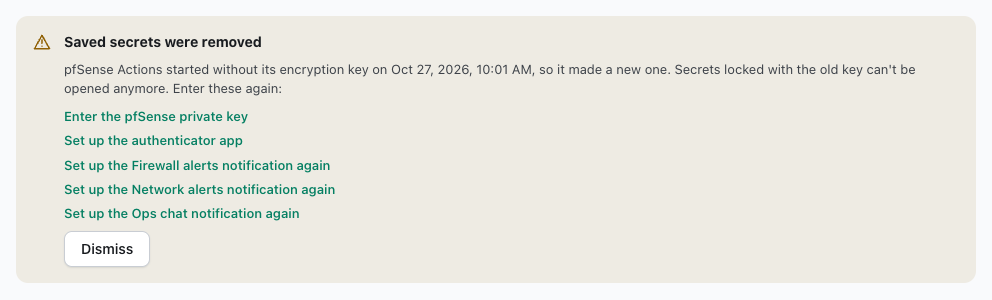
Enter the Secrets Again
- Select Enter the pfSense password or Enter the pfSense private key, enter it on the Connection page, and select Test and save.
- Select Set up the authenticator app, and turn it on again as described in Account Security.
- Select the item for each destination, such as Set up the Ops chat notification again. Then select Edit on it, enter its secret fields, and select Save, as described in Notifications.
- Each item leaves the notice once it's entered again. Dismiss hides the notice, and anything not entered again stays removed.
- Until the credential is back, every action answers
503withconnection_not_configured, and a destination gets no alerts until its secret fields are back. - If the deprecated
PFSENSE_*variables are still set, they fill the credential back in on the same start.
Encryption Key Doesn't Match
When keys/installation.key belongs to another database, for example after a restore that mixed files, startup stops with this message until it's fixed.
The encryption key at /data/keys/installation.key doesn't belong to this database. Put back the key file this database was created with, or delete /data/keys/installation.key and restart to make a new key, then enter the saved secrets again.
- If a backup has the key file this database was created with, put it back as
keys/installation.keyin the volume. - Without that file, delete the key file and start again, which makes a new key as described in Lost Encryption Key.
These commands delete the key file from the volume.
docker compose stop app
docker run --rm \
  -v pfsense-actions_pfsense_actions_data:/data \
  debian:trixie-slim \
  rm /data/keys/installation.key
docker compose start app
- An old key file put back after pfSense Actions made a new one stops startup the same way, because the database now belongs to the new key.
- A damaged key file stops startup with
The encryption key file at /data/keys/installation.key is not 64 hexadecimal characters., and the same two fixes apply.
Change PUID or PGID with Existing Data
The container's setup step changes the owner of the /data folder itself, but not of the files inside it. Before starting with new IDs, change the files' owner to match.
docker run --rm \
  -v pfsense-actions_pfsense_actions_data:/data \
  debian:trixie-slim \
  chown -R 1001:1001 /data
Reinitialize Deliberately
danger
Reinitializing deletes the administrator account, every token, the pfSense connection, the authenticator app and passkeys, every notification destination, and the activity log.
- Back up the current volume as described above.
- Remove the data volume with
docker compose down --volumes. - Start the service with
docker compose up --detach, which creates a new database and key. - Create the administrator account with the new setup code from the log.
- Set up the pfSense connection, create new tokens, update every client, and add your notification destinations again.