Sign In
Open the operations console in a browser, create the administrator account on the first visit, and then sign in with a password, an authenticator code, or a passkey.
Open the Console
Go to /admin on the same address as the API, such as https://actions.example.net/admin, and opening the root address in a browser takes you there too. After you sign in, the sidebar has five pages, and the account menu at its bottom holds the rest.
| Page | What it's for |
|---|---|
| Overview | The version and uptime, the pfSense connection with a connection test, and recent activity. |
| Activity | The activity log. |
| Access tokens | Creating, editing, and revoking each personal access token, and the address and paths that clients call. |
| Connection | Testing and changing the SSH connection to the firewall. |
| Notifications | Sending alerts to ntfy, Telegram, email, and other services when pfSense stops answering, sign-in is locked, or an action fails, as described in Notifications. |
| Password and sign-in | Your password, username, authenticator app, recovery codes, and passkeys, opened from the account menu. |
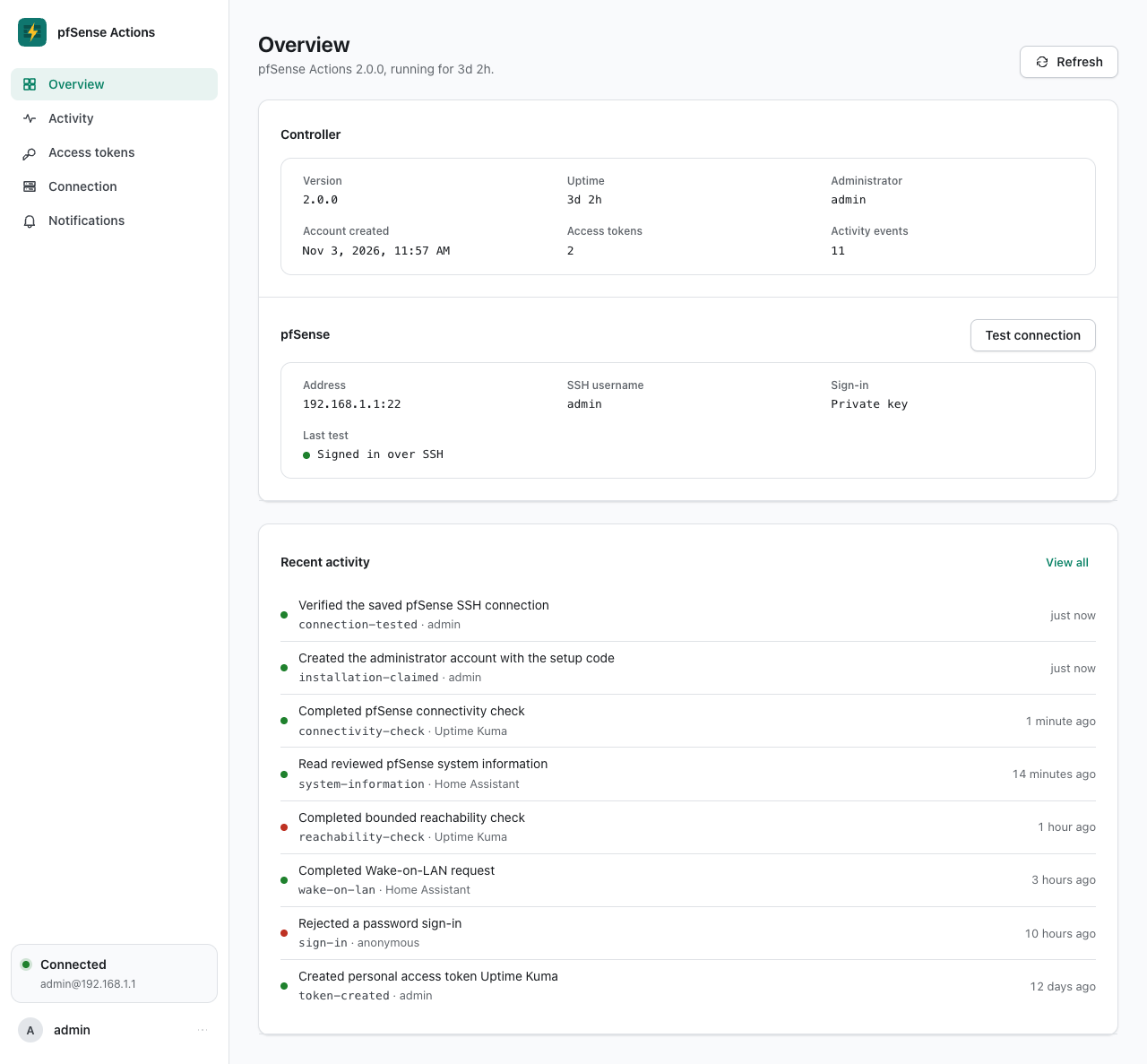
On a phone, the first four pages move to a bar at the bottom of the screen, and the account menu, which then also holds Notifications, opens from your initial at the top.
Create the Administrator Account
On a new installation, the console opens on Set up your account instead of the sign-in screen.
- Enter the One-time code, which is the setup code from the container log. Letter case, spaces, and dashes don't matter.
- Choose a Username and a Password of at least 12 characters, and repeat the password in Confirm password. The bar under the field rates it from Weak to Strong, and any password of 12 or more characters is accepted.
- Select Create account.
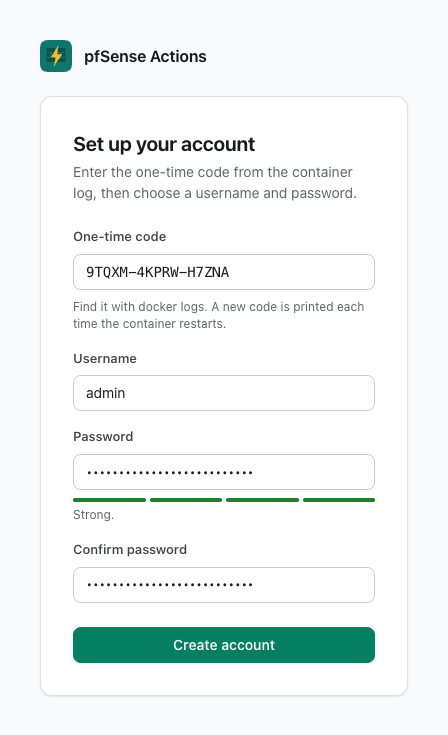
- A username is 3 to 64 letters, digits,
.,_, or-, starting with a letter or digit. - A code lasts 30 minutes, and restarting pfSense Actions prints a new one.
- The setup screen appears only while no account exists, so it doesn't come back once you've created one.
Sign In with a Password
- Enter the Username and Password of the administrator account. The username isn't case-sensitive.
- Select Sign in.
A personal access token or your pfSense login doesn't work here.
Enter an Authenticator or Recovery Code
If you've turned on an authenticator app, the console asks for a code after the password.
- Enter the six-digit code the app shows, or one of your recovery codes.
- Select Verify, or select Start over to return to the password step.
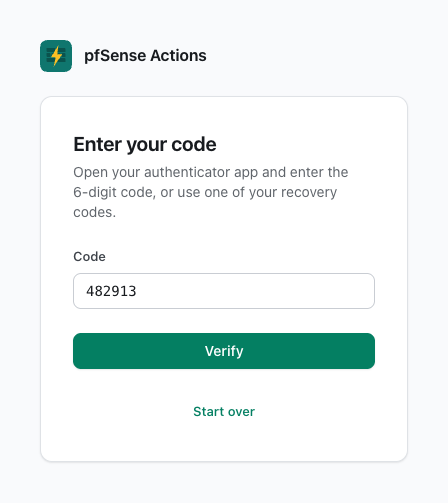
- You have 5 minutes after the password step, and 5 wrong codes end the attempt.
- Each authenticator code and each recovery code works only once. A recovery code works with or without its dash, in any letter case.
Sign In with a Passkey
- Select Sign in with a passkey.
- Confirm with your device or password manager when the browser asks.
- A passkey replaces the username, the password, and the authenticator code.
- A passkey works only at the hostname it was added on, as described in HTTPS Reverse Proxy.
Sessions
- A browser session lasts 24 hours from sign-in, and then the console returns to the sign-in screen.
- Sessions are stored in the controller database, so restarting or updating pfSense Actions doesn't sign you out.
- Changing the password signs out every other session, and Sign out in the account menu ends your own session right away.
Failed Sign-Ins
- Each failed sign-in appears in the activity log with the actor
anonymous. - Wrong passwords, wrong codes, rejected passkeys, and wrong passwords entered on Password and sign-in from one address share a limit of 10 failures in 15 minutes. After that, sign-in from that address waits until the window passes, and a successful sign-in clears the count.
- The tenth failure also sends Sign-in locked to the notification destinations that chose it, as described in Notifications.
- The setup screen has its own limit of 10 wrong codes in 15 minutes from one address, and those don't send Sign-in locked.
Appearance
Choose System, Light, or Dark under Appearance in the account menu. System follows your device's setting, and the choice is saved in this browser only.