Notifications
Send an alert to your phone, chat, or inbox when pfSense stops answering or comes back, when sign-in is locked, or when an action fails.
Why Use Notifications?
- Checks pfSense every 5 minutes while a destination wants to hear about it, so you learn the firewall stopped answering before a script or shortcut fails.
- Reports locked sign-ins and secrets removed with a lost encryption key, so trouble with the operations console reaches you even when nobody has it open.
- Sends each alert to every destination that chose its event, from ntfy and Telegram to email and webhooks, so it reaches you wherever you look.
- Seals tokens, passwords, and webhook URLs with the encryption key and never shows them again, so the list of destinations doesn't expose them.
Open the Notifications Page
- Wide screens — Select Notifications in the sidebar, below Connection.
- Narrow screens — The tab bar keeps Overview, Activity, Access tokens, and Connection, so open the account menu from your initial at the top and select Notifications.
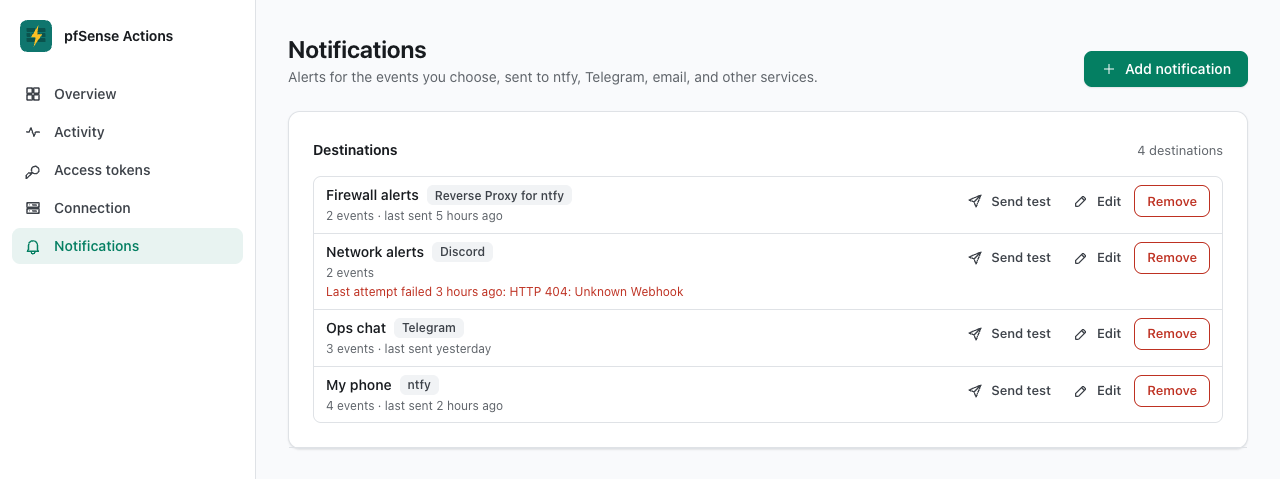
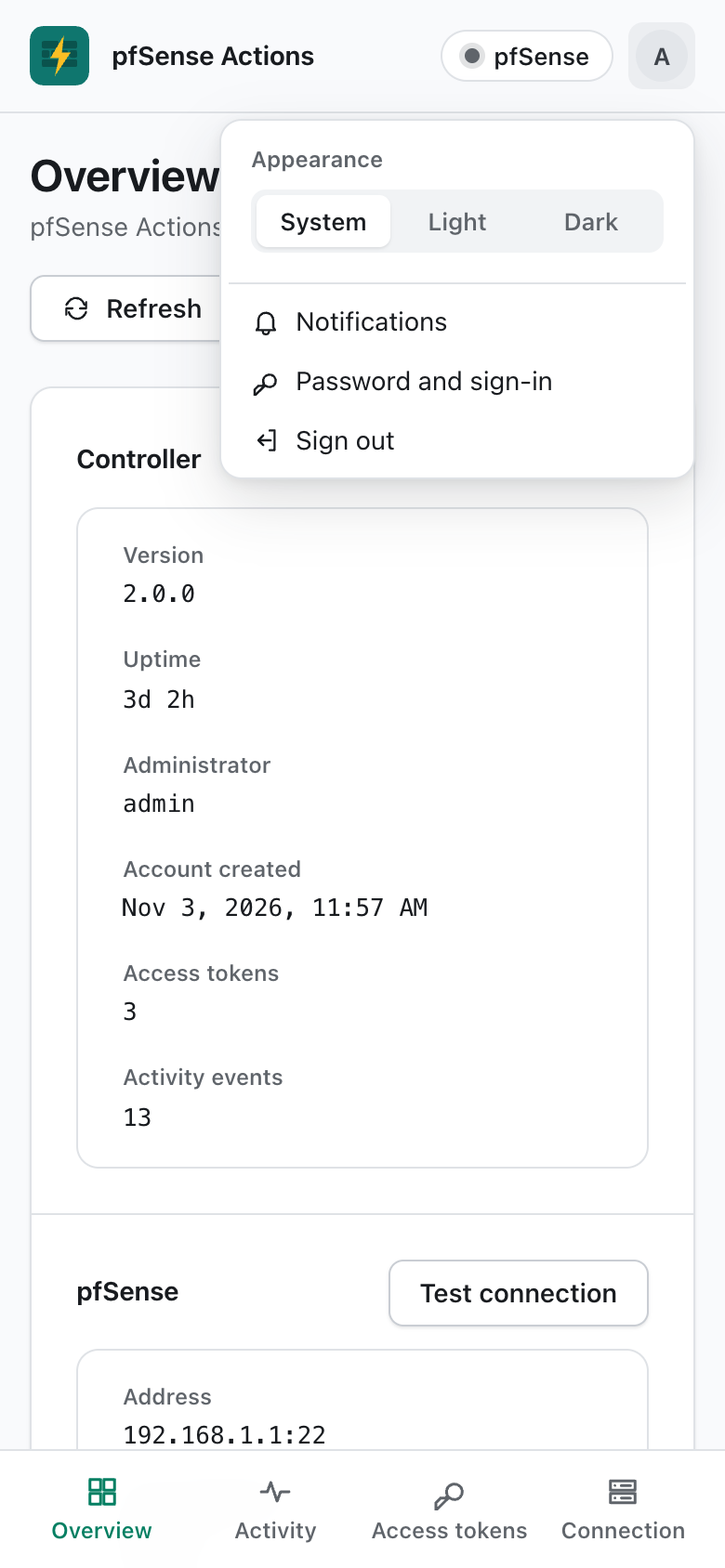
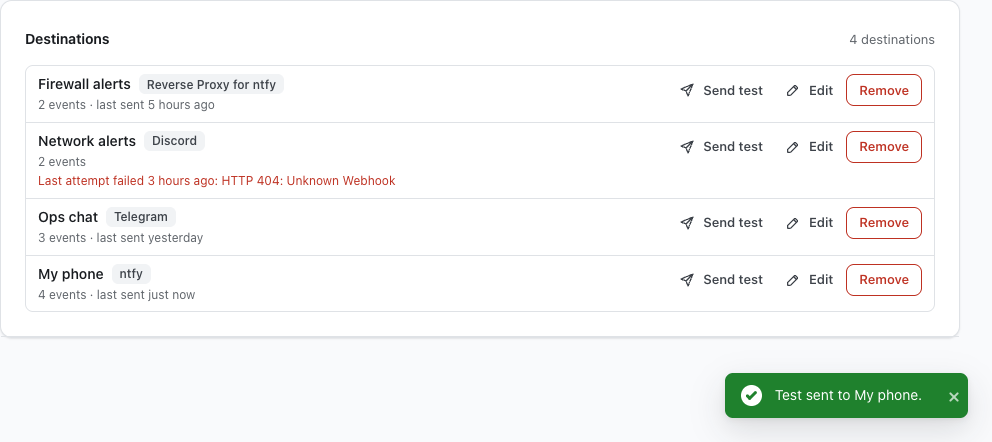
Under Destinations, each row shows a destination's name and service, how many events it hears about, and the result of its last send. The newest destination is listed first.
Add a Destination
- Select Add notification.
- In Service, choose where alerts go. ntfy is selected at first.
- Enter a Name you'll recognize, such as the device or chat it goes to.
- Fill in the service's fields, as listed in Services.
- Under Events, keep the events this destination should hear about. The first four are checked at first, as listed in Events.
- Select Add notification in the dialog.
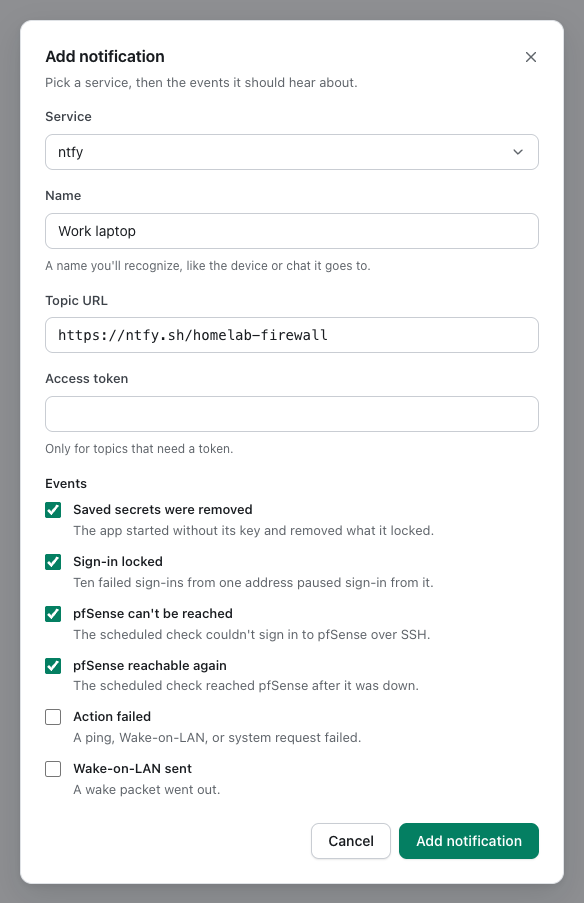
- A name can have up to 80 characters, and each destination needs a different one, whatever the letter case.
- The dialog's Add notification stays unavailable until the name is filled in and at least one event is checked.
- A field with a problem shows the reason under it, such as
Use the full topic URL, like https://ntfy.sh/my-alerts.
It's recommended to select Send test after adding a destination, as covered in Send a Test.
Services
Service offers these in this order, starting with ntfy.
| Service | Required fields | Optional fields |
|---|---|---|
| ntfy | Topic URL, the full topic address, such as https://ntfy.sh/my-alerts | Access token, for a topic that needs one |
| Reverse Proxy for ntfy | Context URL, the https:// address of a context whose interpreter is pfsense-actions | Context token, for a context that needs one |
| Telegram | Bot token from @BotFather, and the Chat ID of a user, group, or channel the bot can post to | None |
| Discord | Webhook URL from the channel's Integrations settings, starting with https://discord.com/api/webhooks/ | None |
| Slack | Webhook URL of an incoming webhook in your Slack app, starting with https://hooks.slack.com/ | None |
| Gotify | Server URL, and the App token of an application you made in Gotify | None |
| Pushover | User key, and the App token of an application you made in Pushover | None |
| Matrix | Homeserver URL, a Room ID such as !room:example.com, and the Access token of an account already in the room | None |
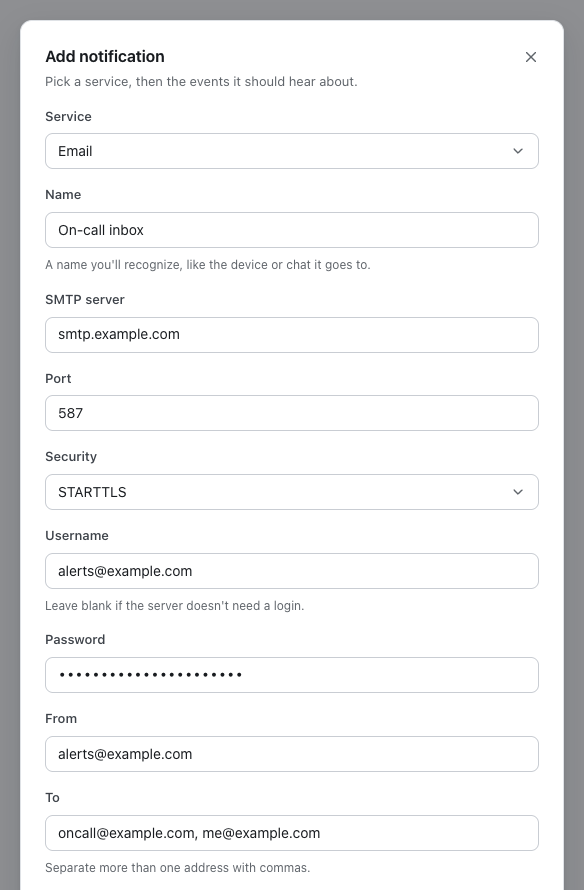
SMTP server, Port (587 at first), Security (STARTTLS, TLS, or None), From, and To | Username and Password, when the server needs a sign-in | |
| Apprise | Apprise URL, the notify URL of your Apprise API server with its config key | Service URLs, separated by spaces, for a stateless Apprise server |
| Webhook | URL that accepts a JSON POST | Bearer token, for an endpoint that needs one |
- Secret fields — Every token, key, and password is a secret field, and so are the Discord, Slack, Apprise, and webhook URLs. The other fields are plain and show their saved values when you edit.
- Addresses — The ntfy, Gotify, Apprise, and webhook URLs can start with
http://orhttps://, while the Reverse Proxy for ntfy and Matrix addresses needhttps://. Discord also acceptshttps://discordapp.com/api/webhooks/. - Matrix room IDs — Use the room ID that starts with
!, such as!room:example.com. Room aliases that start with#aren't accepted, because sending needs the room ID. - Email — To takes several addresses separated by commas. Entering a Password also requires a Username; the form rejects a password on its own instead of silently sending without authentication.
- Email security — STARTTLS fails the send when the server doesn't offer it, and TLS encrypts from the start, usually on port 465. None sends without encryption.
- Reverse Proxy for ntfy — Alerts arrive as the JSON payload covered in Webhook Payload, which a Reverse Proxy for ntfy context with the
pfsense-actionsinterpreter turns into a notification.
Events
| Event | At first | Sent when |
|---|---|---|
| Saved secrets were removed | Checked | pfSense Actions started without its encryption key and removed the secrets the old key sealed. It's sent while pfSense Actions starts. |
| Sign-in locked | Checked | Ten failed sign-ins from one address within 15 minutes paused sign-in from it. Each address is reported once per 15 minutes. |
| pfSense can't be reached | Checked | Two scheduled checks in a row couldn't sign in to pfSense over SSH or run uname -mrs. It's sent once per outage. |
| pfSense reachable again | Checked | A scheduled check succeeded after pfSense can't be reached was sent. |
| Action failed | Not checked | An API request for an action answered 502 or 500, for example because the SSH sign-in or the pfSense command failed. |
| Wake-on-LAN sent | Not checked | pfSense sent a wake packet for a POST /api/v1/wol request. |
- Off at first — Action failed and Wake-on-LAN sent can come with every request, so they stay off until you check them.
- Sign-in attempts — Wrong passwords, authenticator and recovery codes, rejected passkeys, and wrong passwords on Password and sign-in all count, while wrong setup codes don't.
- Pings — A ping request sends Action failed when the SSH sign-in or
pingcommand fails, or something unexpected happens. A target that simply never meets the reachability condition doesn't send it. - Not counted — Invalid requests, token and rate limit errors, a missing pfSense connection, and Test connection in the operations console don't send Action failed.
- Saved secrets were removed — Only destinations without secret fields can get it, such as ntfy without an access token or Email without a password. The others are paused until their secrets are entered again.
The Scheduled Check
pfSense Actions checks pfSense on its own, so you hear about an outage even when no script is calling it.
- Every 5 minutes — While a destination that isn't paused hears about pfSense can't be reached or pfSense reachable again, pfSense Actions signs in to pfSense over SSH and runs
uname -mrsevery 5 minutes. The first scheduled check runs 5 minutes after pfSense Actions starts. - One at a time — Each SSH command in the check has a 30-second deadline. If a check is still running when another interval arrives, the new interval is skipped instead of opening another session.
- Two in a row — A scheduled check fails when the sign-in or the command fails, and the second failure in a row sends pfSense can't be reached. An outage is therefore reported about 5 to 10 minutes after pfSense stops answering.
- Back again — The first scheduled check that succeeds after that sends pfSense reachable again.
- Skipped — There's no scheduled check while no destination wants these events, while no pfSense connection is saved, or while its password or private key is missing.
- Separate from the API — The scheduled checks don't use a token, don't count toward the rate limits, and aren't recorded in the activity log.
- After a restart — The count starts over, so a firewall that's still down is reported again after two more failed scheduled checks. A firewall that came back while pfSense Actions was restarting isn't reported as back.
tip
When pfSense is also the router for the Docker host, an outage can cut off the internet as well, so a cloud service may never get pfSense can't be reached. A destination on the same network, such as a self-hosted ntfy or Gotify server, can still get it.
How Alerts Look
- Title — Every alert starts with
pfSense Actions:and the event, such aspfSense Actions: pfSense can't be reached, and email uses it as the subject. - High priority — Saved secrets were removed, Sign-in locked, and pfSense can't be reached use priority 4 on ntfy, 8 on Gotify, and 1 on Pushover. Discord shows them in red, and Apprise sends them as warnings.
- Low priority — Wake-on-LAN sent uses priority 2 on ntfy and Gotify, and -1 on Pushover.
- Everything else — pfSense reachable again, Action failed, and the test use priority 3 on ntfy, 5 on Gotify, and 0 on Pushover.
- Webhooks — Webhook and Reverse Proxy for ntfy destinations get JSON instead, as covered in Webhook Payload.
pfSense Actions: pfSense can't be reached
Couldn't sign in to pfSense at 192.0.2.1:22 over SSH in two checks in a row. Actions fail until it answers again.

pfSense Actions: pfSense reachable again
pfSense at 192.0.2.1:22 answered the scheduled check again.

pfSense Actions: Action failed
Wake-on-LAN failed: The pfSense command failed.

pfSense Actions: Sign-in locked
Ten failed sign-ins from 198.51.100.7. Sign-in from it is paused for 15 minutes.
Send a Test
- Select Send test on a destination, which reads Sending… while it works.
- Check that Test notification arrives with the message
This is a test from pfSense Actions. Alerts for the events you chose will look like this.
- A notification in the corner then shows
Test sent toand the destination's name, orThe test to … couldn't be sent:with the reason, such asHTTP 401: UnauthorizedorNo answer within 10 seconds. - A test goes out whichever events the destination chose, and it becomes the row's last send.
Edit or Remove a Destination
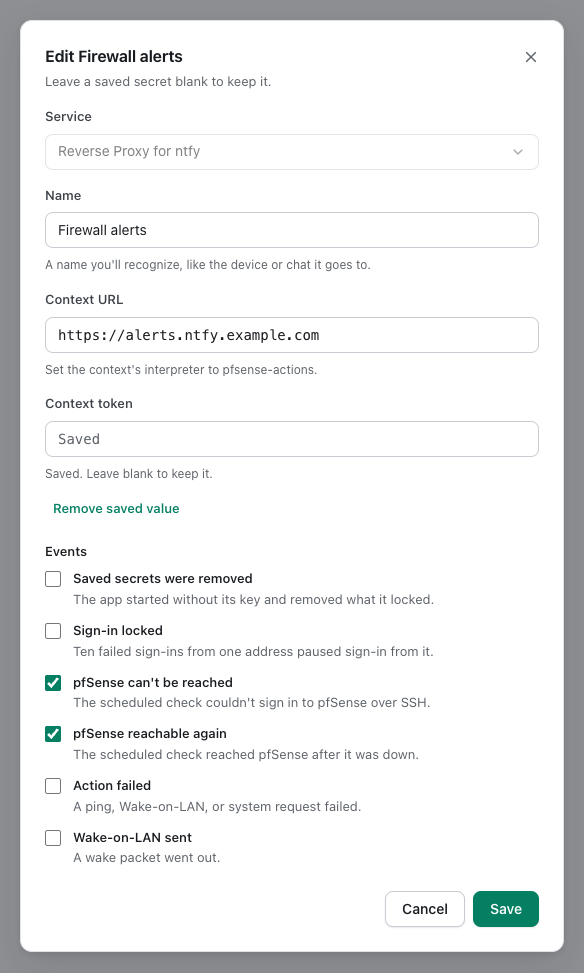
- Edit — Opens the same dialog with the note
Leave a saved secret blank to keep it.Change the name, the events, or the fields, then select Save. - Service — It can't be changed, so add a new destination to switch services.
- Saved secrets — A saved secret field shows Saved instead of its value. Leaving it blank keeps the saved value, and typing a new one replaces it.
- Optional secrets — Select Remove saved value below an optional secret, such as an ntfy Access token, to delete it when you save, or Keep saved value to undo that. Required secrets can't be removed this way.
- Plain fields — They show their saved values, and clearing an optional one removes it when you save. Email is the exception when a password is saved: its Username stays required so the password can't be silently ignored.
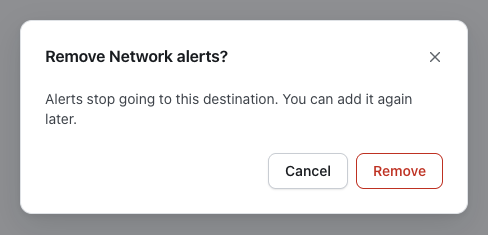
- Remove — Opens a dialog that asks you to confirm with
Alerts stop going to this destination. You can add it again later., then stops its alerts right away.
Secrets
- Sealed — Secret fields are encrypted with the encryption key before they're saved, and pfSense Actions opens them only to send an alert or to keep them when you edit.
- Never shown — The operations console and the API show which secret fields are saved, never their values.
- Backups — It's recommended to back up
keys/installation.keytogether with the database, as covered in Backup and Recovery.
After a Lost Encryption Key
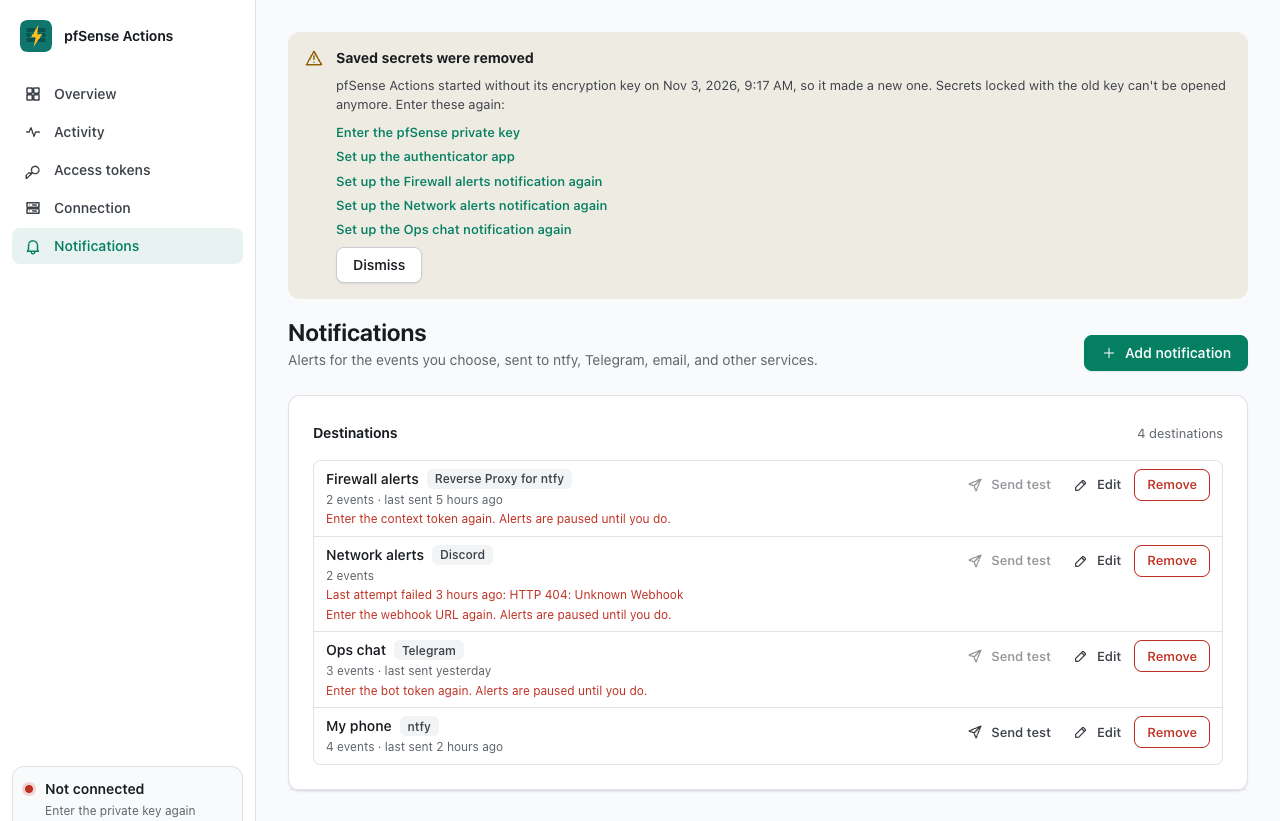
When pfSense Actions starts without its encryption key, it makes a new one and removes what the old key sealed, as covered in Lost Encryption Key.
- Secrets removed — Every destination's secret fields are removed. The destination stays with its name, events, and plain fields.
- Paused — A destination missing a secret gets no alerts, and its Send test is unavailable. Its row says which fields to enter, such as
Enter the bot token again. Alerts are paused until you do. - Notice — The Saved secrets were removed notice at the top of every page has a link for each one, such as Set up the Ops chat notification again, which opens Notifications.
- Optional secrets too — For an optional secret that a lost key removed, such as an ntfy Access token, either enter it again or select Continue without this value before you save, and the destination resumes. Require this value undoes that choice.
- Others keep working — Destinations without secret fields keep getting alerts, and the ones that chose Saved secrets were removed get that alert while pfSense Actions starts.
To set a destination up again:
- Select Edit on it.
- Enter each required field marked
A lost key removed it. Enter it again.For an optional one, enter it again or select Continue without this value. - Select Save.
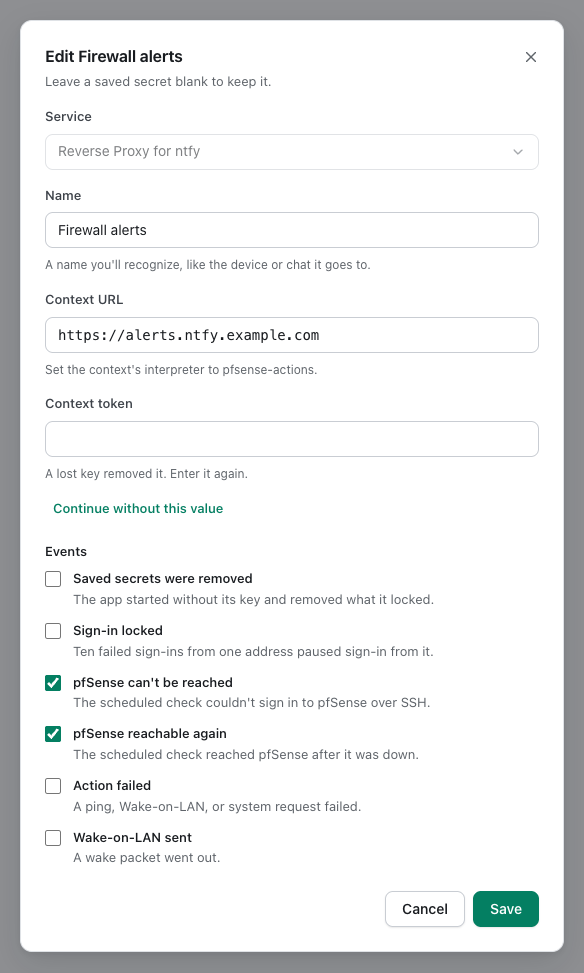
The destination then leaves the notice and gets alerts again.
Delivery
- Right away — Each alert goes to every destination that chose its event as soon as it happens, without holding up the request that caused it.
- 10-second limit — Each send gives up after 10 seconds without an answer, and a slow service doesn't hold up the others.
- No retries — A failed alert isn't sent again, and the row shows Last attempt failed in red with the reason.
- From the controller — Alerts leave from pfSense Actions itself, so it needs to reach each service, such as
api.telegram.org,api.pushover.net, or your SMTP server.
Webhook Payload
Webhook and Reverse Proxy for ntfy destinations receive the same JSON payload in a POST. A saved token is sent as Authorization: Bearer <token>.
{
  "app": "pfsense-actions",
  "details": {
    "address": "192.0.2.1",
    "port": 22
  },
  "event": "pfsense-unreachable",
  "message": "Couldn't sign in to pfSense at 192.0.2.1:22 over SSH in two checks in a row. Actions fail until it answers again.",
  "occurredAt": "2026-10-26T12:10:00.000Z",
  "priority": 4,
  "tags": ["warning"],
  "title": "pfSense can't be reached",
  "version": 1
}
| Field | Description |
|---|---|
app | Always pfsense-actions. |
details | Extra data for the event, listed in the next table. |
event | The event's key, or test for Send test. |
message | The alert's text. |
occurredAt | When it happened, in UTC with milliseconds. |
priority | 4 for high-priority events, 2 for Wake-on-LAN sent, and 3 for the rest, on ntfy's 1-to-5 scale. |
tags | ntfy tag names that show as emoji. |
title | The event's name, without pfSense Actions:. |
version | The payload format, 1. |
| Key | Event | Priority | Tags | details |
|---|---|---|---|---|
secrets-removed | Saved secrets were removed | 4 | key, warning | items, the removed secrets in the log's words |
sign-in-locked | Sign-in locked | 4 | lock | address, the client address that was locked |
pfsense-unreachable | pfSense can't be reached | 4 | warning | address and port of the saved connection |
pfsense-reachable | pfSense reachable again | 3 | white_check_mark | address and port of the saved connection |
action-failed | Action failed | 3 | x | action and reason |
wol-sent | Wake-on-LAN sent | 2 | zap | macAddress and broadcastAddress |
test | Send test | 3 | bell | Empty |
details.actionnames the request the way the activity log does:connectivity-check,system-information,reachability-check, orwake-on-lan.details.reasonis the short reason, such asThe pfSense command failed.
Manage Notifications from Scripts
The Notifications page uses these routes, which scripts can call too.
| Route | What it does |
|---|---|
GET /api/v1/notifications | Lists every destination, newest first, with secrets naming its saved secret fields but never their values. |
GET /api/v1/notifications/events | Lists the events in the dialog's order, with their labels, descriptions, and defaultEnabled for the ones checked at first. |
POST /api/v1/notifications | Adds a destination from name, service, events, and settings, and answers 201. |
PUT /api/v1/notifications/{notificationId} | Changes a destination's name, events, and settings, keeping saved secret fields that are left out or blank. clearSecrets lists optional secrets to clear, saved or removed by a lost key, each once and never with a new value for the same field. |
DELETE /api/v1/notifications/{notificationId} | Removes a destination and answers 204. |
POST /api/v1/notifications/{notificationId}/test | Sends the test and answers {"delivered":true}, or false with a message. |
notificationId is the destination's id, such as ntf-2a4c6e8a0b2d4f60.
warning
These routes accept only a signed-in browser session. A request with an Authorization header, such as a personal access token, gets 403 with the code session_required, whatever its scopes.
Sign In from a Script
A script signs in the way the operations console does and keeps the session cookies.
read -r -s PFSENSE_ACTIONS_PASSWORD

# Sign in and save the session cookies.
printf '{"username":"admin","password":"%s"}' "$PFSENSE_ACTIONS_PASSWORD" \
  | curl --silent --show-error --fail-with-body --cookie-jar session.txt \
      --header 'Content-Type: application/json' --data @- \
      https://actions.example.net/api/v1/auth/login

unset PFSENSE_ACTIONS_PASSWORD

# Read the CSRF value that changes need from the pfa_csrf cookie.
csrf_token="$(awk '$6 == "pfa_csrf" { print $7 }' session.txt)"

# List the destinations.
curl --silent --show-error --fail-with-body --cookie session.txt \
  https://actions.example.net/api/v1/notifications

# Send a test to one destination.
curl --silent --show-error --fail-with-body --cookie session.txt \
  --request POST --header "X-CSRF-Token: $csrf_token" \
  https://actions.example.net/api/v1/notifications/ntf-2a4c6e8a0b2d4f60/test

# Sign out, which ends the session, then delete the cookies.
curl --silent --show-error --cookie session.txt \
  --request POST --header "X-CSRF-Token: $csrf_token" \
  https://actions.example.net/api/v1/auth/logout

rm session.txt
- Username — Replace
adminwith your username.printfdoesn't escape JSON, so a password with"or\needs those characters escaped first. - Changes —
POST,PUT, andDELETEneed theX-CSRF-Tokenheader with the session's CSRF token, which the sign-in answer also returns ascsrfToken. - Authenticator app — When it's on, the sign-in answers with a
challengeinstead, which you send with acodetoPOST /api/v1/auth/login/second-factor. - Failed sign-ins — They count toward the sign-in limit, and ten from one address send Sign-in locked to the destinations that chose it.
- Session file —
session.txtholds a working session until it expires or you sign out, so it's worth keeping it private.
Request Body
{
  "name": "My phone",
  "service": "ntfy",
  "events": ["sign-in-locked", "pfsense-unreachable", "pfsense-reachable"],
  "settings": {
    "url": "https://ntfy.sh/pfsense-alerts",
    "token": "tk_example"
  }
}
service | settings keys |
|---|---|
ntfy | url, token |
ntfy-reverse-proxy | url, token |
telegram | botToken, chatId |
discord | webhookUrl |
slack | webhookUrl |
gotify | url, token |
pushover | userKey, appToken |
matrix | homeserverUrl, roomId, accessToken |
email | host, port, security (starttls, tls, or none), username, password, from, to |
apprise | url, urls |
webhook | url, token |
eventstakes the keys from Webhook Payload, excepttest, and each key only once.- Every
settingsvalue is a string, includingport, and the required keys match the required fields in Services. - A key that isn't listed for the service is refused with
This field isn't accepted. PUTtakes the same body withoutservice, or with the same one. A plain field that's left out is cleared, so it's worth sending all of them again.
Response Body
{
  "createdAt": "2026-10-26T12:00:00.000Z",
  "events": ["sign-in-locked", "pfsense-unreachable", "pfsense-reachable"],
  "id": "ntf-2a4c6e8a0b2d4f60",
  "lastAttemptAt": "2026-10-26T12:05:00.000Z",
  "lastError": null,
  "name": "My phone",
  "secrets": { "token": true },
  "secretsMissing": [],
  "service": "ntfy",
  "settings": { "url": "https://ntfy.sh/pfsense-alerts" },
  "updatedAt": "2026-10-26T12:00:00.000Z"
}
secretsmarks each saved secret field withtrue, andsecretsMissinglists the ones a lost encryption key removed.lastAttemptAtandlastErrordescribe the last send, andlastErrorisnullwhen it worked or nothing was sent yet.POSTanswers201with the new destination, andPUTanswers200with the changed one.- The test route answers
200even when the send fails, withdeliveredset tofalseand the reason inmessage.
Errors
| Status | Code | When |
|---|---|---|
401 | authentication_required | No signed-in browser session, or it expired. |
403 | session_required | The request had an Authorization header, such as a personal access token. |
403 | csrf_invalid | A change came without a matching X-CSRF-Token header. |
404 | notification_not_found | The destination doesn't exist or was removed. |
409 | notification_exists | Another destination uses the name, whatever the letter case. |
422 | invalid_request | A field failed its check, and issues names each one, such as settings.url or events.2. |
429 | rate_limited | The address sent more than 120 requests under /api/v1 in a minute. |
Malformed JSON and bodies over 64 KB get 400 and 413, as described in Request Basics.