Account Security
Protect console sign-in by keeping the administrator password current and adding an authenticator app or passkeys. Everything on this page is under Password and sign-in in the account menu.
Why Add Sign-In Security?
- Adds TOTP, so password sign-in also needs a code from your phone.
- Gives you recovery codes, so losing the phone doesn't lock you out.
- Adds passkeys, so you can sign in without typing a password.
- Asks for your password before any change, so a session left open can't quietly change how you sign in.
Change the Password
- Under Password, enter the Current password.
- Enter a New password of at least 12 characters, and repeat it in Confirm new password. The bar under the field rates it from Weak to Strong, and any password of 12 or more characters is accepted.
- Select Change password.
Changing the password signs out every other browser session, while this one stays signed in.
Change the Username
- Under Username, enter the New username, 3 to 64 letters, digits,
.,_, or-, starting with a letter or digit. - Enter Your password and select Change username.
The new username applies at once, including to sessions that are already signed in.
Turn On an Authenticator App
- Under Authenticator app, select Set up. A dialog walks through three steps.
- Enter your password and select Continue.
- Scan the QR code with your authenticator app, or type the Setup key into the app. Copy puts the key on the clipboard.
- Enter the six-digit code from the app in Code and select Turn on.
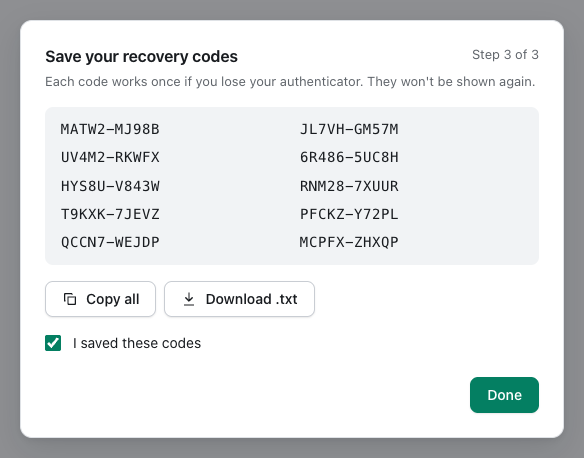
- Save the ten recovery codes with Copy all or Download .txt, check I saved these codes, and select Done.
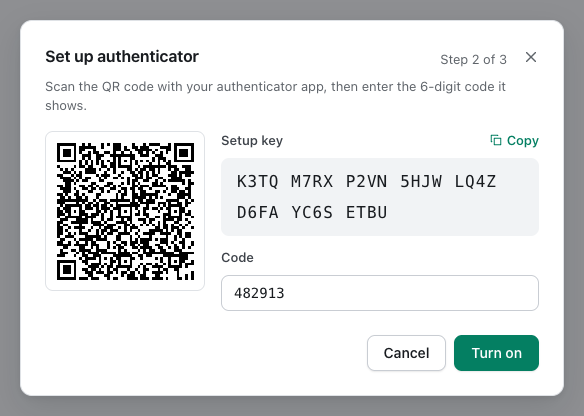
- You have 10 minutes to finish these steps before you need to start again.
- From then on, password sign-in asks for a code, and each code works only once.
Recovery Codes
- Each recovery code works once in place of an authenticator code, and Authenticator app shows how many are left.
- The codes appear only once. pfSense Actions stores a hash of each one, so it can't show them again.
- New recovery codes asks for your password, then shows the new set in the same dialog and replaces the old one, so the old codes stop working.
- Done stays unavailable until I saved these codes is checked, and the dialog can't be closed another way, because the codes aren't shown again.
Add a Passkey
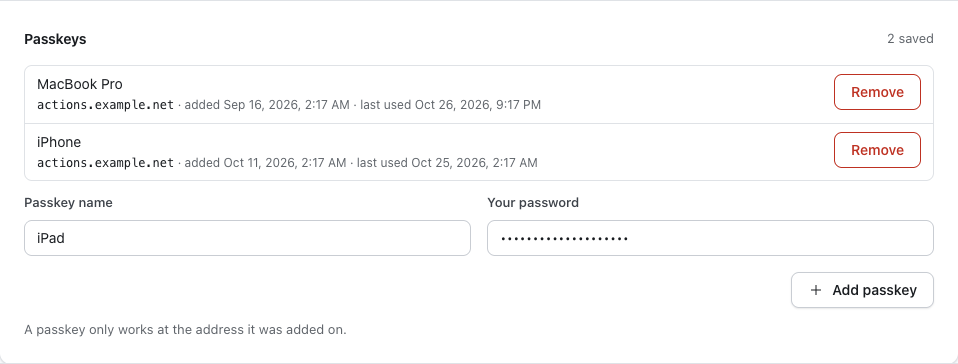
- Under Passkeys, enter a Passkey name of up to 80 characters, such as the device it's on.
- Enter Your password and select Add passkey.
- Follow your browser's prompt.
A passkey works only at the hostname it was added on, and the list shows that hostname next to each one. On an IP address or plain HTTP, the console explains why it can't add passkeys there, as described in HTTPS Reverse Proxy.
Remove a Method
- Authenticator app — Select Turn off, enter your password in the dialog, and select Turn off again. The recovery codes are deleted with it.
- Passkey — Select Remove next to the passkey, enter your password in the dialog, and select Remove passkey. It stops working right away.
Before You Rely on TOTP
warning
Keep the recovery codes somewhere other than the phone with your authenticator app. If you lose both and have no passkey, getting back in takes access to the Docker host, as described in Backup and Recovery.
A passkey is another way in, because passkey sign-in doesn't ask for a TOTP code. Backup and Recovery covers what to do if you're locked out.