pfSense Connection
Set up and change how pfSense Actions signs in to your firewall, with every change tested before it's saved.
Why Test Before Saving?
- Keeps the working connection in place when new settings can't sign in.
- Treats the password or key as a write-only secret, so the console never shows it after you save it.
- Lets you check the saved connection at any time without running an action.
Set Up the Connection
A new installation has no connection, so Overview shows Connect to pfSense, and every action answers 503 until you save one.
- Select Set up the connection, or open Connection.
- Fill in the fields described below, then select Test and save.
If you try to open another page or sign out after changing a field, the console asks before discarding it. Refreshing or closing the browser tab uses the browser's unsaved-changes warning too.
View the Connection
- Overview shows the firewall's address, the SSH username, and the sign-in method under pfSense, with the credential hidden.
- Connection shows the same values under Saved connection, with a form to change them below.
Test the Saved Connection
Select Test connection on Overview or Connection.
Last test shows whether the sign-in worked, and the sidebar's connection status changes to match. The connection test only signs in, so it doesn't ping or wake anything, and its result appears in the activity log.
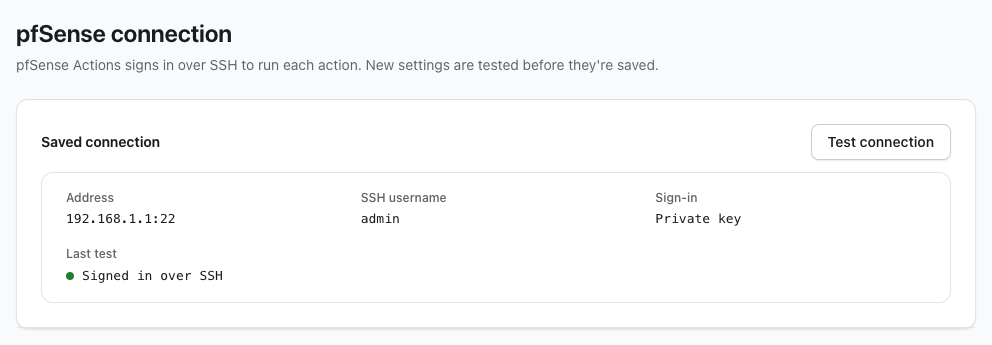
To hear about a connection that stops working without testing it yourself, add a notification destination that chose pfSense can't be reached. pfSense Actions then runs a scheduled check every 5 minutes, as described in Notifications.
Change Settings
- Open Connection and find Change connection.
- Edit pfSense address, SSH port, and SSH username as needed.
- Choose Private key or Password under Sign in with.
- Enter a new credential, or leave the field empty to keep the saved one.
- Select Test and save.
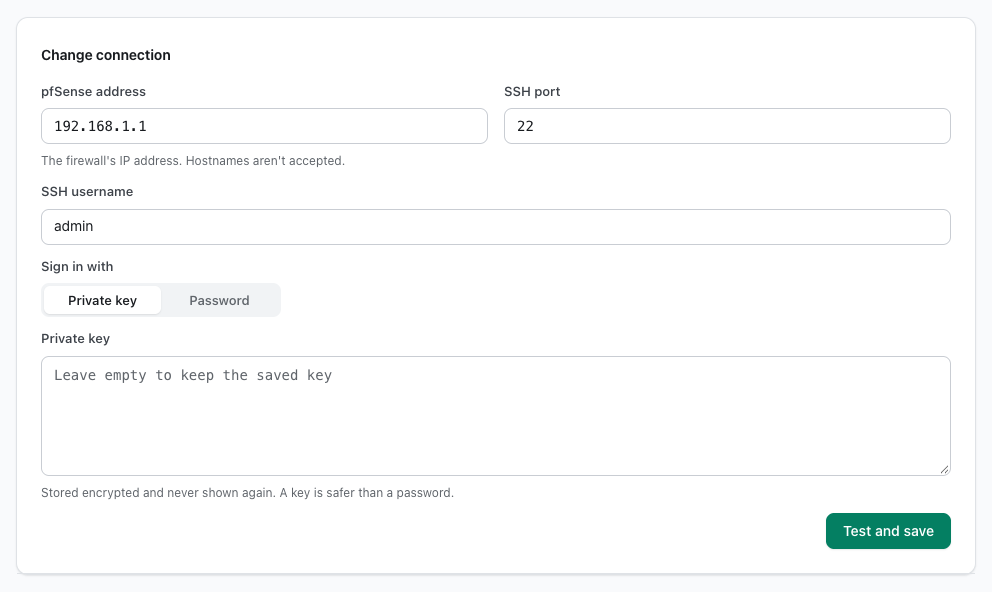
| Field | What it accepts |
|---|---|
| pfSense address | An IPv4 or IPv6 address, not a hostname. |
| SSH port | A number from 1 to 65535. |
| SSH username | Up to 128 characters. |
| Private key | The whole private key, including its BEGIN and END lines, with no passphrase. |
| Password | The account's SSH password. |
pfSense Actions saves the settings only if the connection test signs in with them. If it can't, nothing changes, and the console reports the failure next to Test and save.
Switching between Private key and Password needs a new credential, because the saved one belongs to the other method.
Enter the Credential Again
If pfSense Actions started without its encryption key, it keeps the connection's address, port, username, and sign-in method, but removes the password or private key.
- Sign-in under Saved connection shows
Password, not savedorPrivate key, not saved, and the sidebar showsNot connectedwithEnter the password againorEnter the private key again. - Every action answers
503, and Test connection reportsEnter the password or private key again, then save the connection. - The scheduled check for notifications stops until the credential is back, so pfSense can't be reached isn't sent in the meantime.
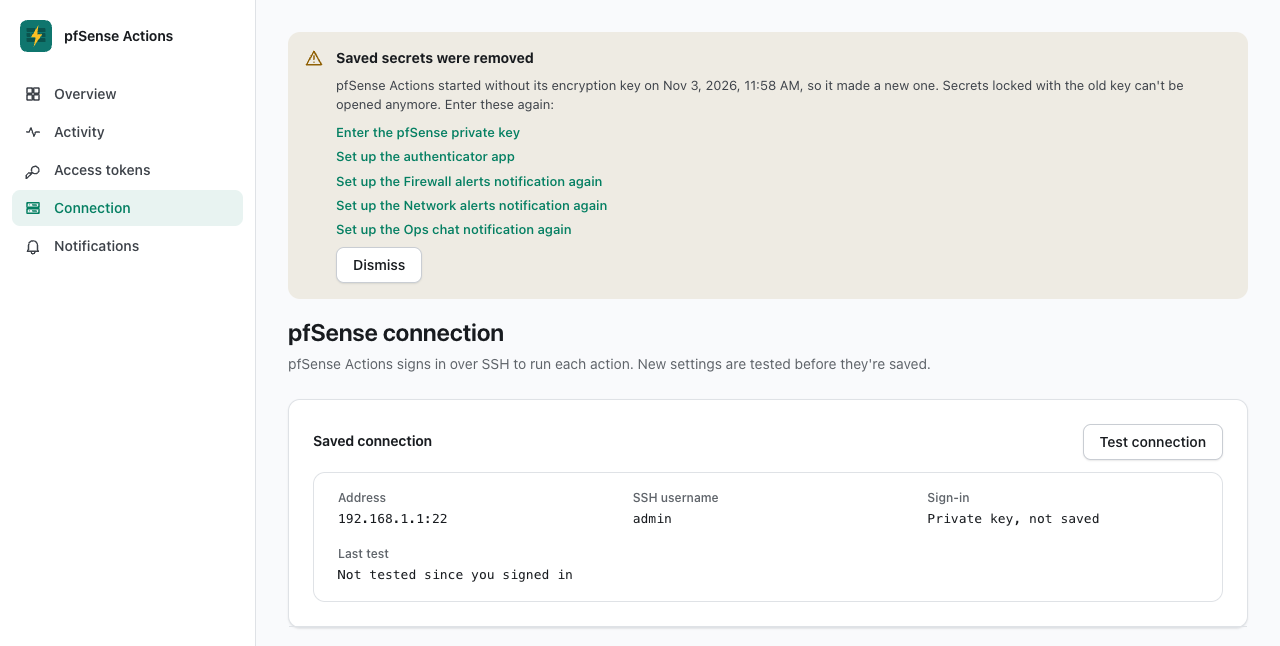
Enter the password or private key under Change connection and select Test and save. Backup and Recovery covers what else a lost key removes.
Environment File Values
warning
The PFSENSE_* environment variables are deprecated bootstrap values. When they're set and no connection is saved yet, or its password or private key was removed, pfSense Actions imports them as the connection on its next start, without testing them, and logs a warning at every start while they're set.
Change the connection on this page instead, and remove the variables.